LINUX: mrtg CPU, RAM und Diskusage auf Debian

Installieren von mrtg und snmp

apt-get install mrtg mrtg-contrib mrtgutils snmp-mibs-downloader snmpd

bei ubuntu falls der downloader nicht gefunden wird: http://packages.ubuntu.com/trusty/all/snmp-mibs-downloader/download

SNMP

Konfiguration von snmp: /etc/snmp/snmp.conf

# As the snmp packages come without MIB files due to license reasons, loading
# of MIBs is disabled by default. If you added the MIBs you can reenable
# loaging them by commenting out the following line.
# mibs :

/etc/snmp/snmpd.conf

# raute vor dem folgenden enfernen
rocommunity public  localhost

MIBs in der /etc/default/snmpd aktivieren

# Don't load any MIBs by default.
# You might comment this lines once you have the MIBs downloaded.
#export MIBS=
export MIBS=/usr/share/mibs

Dienst neustarten

/etc/init.d/snmpd restart


 MRTG:

Konfigurationsdatei /etc/mrtg.conf

######################################################################
# Multi Router Traffic Grapher -- Sample Configuration File
######################################################################
# This file is for use with mrtg-2.5.4c

# Global configuration
WorkDir: /var/www/mrtg
WriteExpires: Yes
RunAsDaemon: yes

EnableIPv6: no
Options[_]: bits,growright
Interval: 5

Title[^]: Traffic Analysis for


#debian:
LoadMIBs: /usr/share/mibs/netsnmp/UCD-SNMP-MIB, /usr/share/mibs/ietf/HOST-RESOURCES-MIB, /usr/share/mibs/ietf/TCP-MIB

#ubuntu:
#LoadMIBs: /usr/share/snmp/mibs/UCD-SNMP-MIB.txt, /usr/share/mibs/ietf/HOST-RESOURCES-MIB, /usr/share/mibs/ietf/TCP-MIB

## CPU

Target[localhost.cpu]:ssCpuRawUser.0&ssCpuRawUser.0:public@127.0.0.1 + ssCpuRawSystem.0&ssCpuRawSystem.0:public@127.0.0.1 + ssCpuRawNice.0&ssCpuRawNice.0:public@127.0.0.1
RouterUptime[localhost.cpu]: public@127.0.0.1
MaxBytes[localhost.cpu]: 100
Title[localhost.cpu]: CPU Load
PageTop[localhost.cpu]: <H1>Active CPU Load %</H1>
Unscaled[localhost.cpu]: ymwd
ShortLegend[localhost.cpu]: %
YLegend[localhost.cpu]: CPU Utilization
Legend1[localhost.cpu]: Active CPU in % (Load)
Legend2[localhost.cpu]:
Legend3[localhost.cpu]:
Legend4[localhost.cpu]:
LegendI[localhost.cpu]: Active
LegendO[localhost.cpu]:
Options[localhost.cpu]: growright,nopercent


## RAM 

Target[localhost.mem]: memAvailReal.0&memTotalReal.0:public@127.0.0.1
PageTop[localhost.mem]: <H1>Free Memory</H1>
Options[localhost.mem]: nopercent,growright,gauge,noinfo
Title[localhost.mem]: Free Memory
MaxBytes[localhost.mem]: 1000000
kMG[localhost.mem]: k,M,G,T,P,X
YLegend[localhost.mem]: bytes
ShortLegend[localhost.mem]: bytes
LegendI[localhost.mem]: Free Memory:
LegendO[localhost.mem]:
Legend1[localhost.mem]: Free memory, not including swap, in bytes


## DISKUSAGE
Target[localhost.root]: dskPercent.1&dskPercent.2:public@localhost
MaxBytes[localhost.root]: 100
Title[localhost.root]: DISK USAGE
PageTop[localhost.root]: <H1>DISK / Usage %</H1>
Unscaled[localhost.root]: ymwd
ShortLegend[localhost.root]: %
YLegend[localhost.root]: DISK Utilization
Legend1[localhost.root]: Root disk
Legend3[localhost.root]:
Legend4[localhost.root]:
LegendI[localhost.root]: Root disk
LegendO[localhost.root]:
Options[localhost.root]: growright,gauge,nopercent


Erstellen des index:

indexmaker -output=/var/www/mrtg/index.html /etc/mrtg.cfg

Starten von mrtg:

env LANG=C /usr/bin/mrtg /etc/mrtg.cfg --logging /var/log/mrtg.log


Wenn ein Webserver installiert ist, sollten nun unter http://ipadresse/mrtg/ die schönen Grafiken liegen.

CRON anpassen, falls via daemon genutzt

vim /etc/cron.d/mrtg


*/5 *   * * *   root    if ! [ -e /etc/mrtg.pid ] && [ -x /usr/bin/mrtg ] && [ -r /etc/mrtg.cfg ] && [ -d "$(grep '^[[:space:]]*[^#]*[[:space:]]*WorkDir' /etc/mrtg.cfg | awk '{ print $NF }')" ]; then env LANG=C /usr/bin/mrtg /etc/mrtg.cfg 2>&1 | tee -a /var/log/mrtg.log ; fi


Debugging:

mit

snmpwalk -v 1 -c public localhost ssCpuRawUser

kann die Ausgabe von SNMP getestet werden, ansonsten gucken was in der /var/log/mrtg.log steht
LINUX: OTP und SSH mit oath-toolkit und FreeOTP

folgende Pakete sind Sinnvoll

apt-get install libpam-oath oathtool qrencode ntpdate

das oathtool zum generieren von otps auf der Konsole
lib-pam um die aktuelle pam zu ersetzen
für eine neuere Version sollte man es neu compilieren von
http://www.nongnu.org/oath-toolkit/


qrencode um ein QR-Code für FreeOTP zu erstellen
ntpdate um immer die aktuelle zeit zu haben, bei Verwendung von TOTPs

die Datei /etc/users.oath anlegen und editieren:

HOTP/T30/6 root - 2e4e8564c0d13e0fea6b7729c9146d7e27ab473d

T30 definiert ein TOTP von 30sec und 6 die Länge
root ist der benutzer und nach dem – kommt das Secret in HEX kann wie folgt generiert werden:

head -c 1024 /dev/urandom | openssl sha1

QR-Code erstellen:

wobei das Secret hier Base32 kodiert ist:

qrencode -t ASCIIi otpauth://totp/Bezeichnung:root@host?secret=FZHIKZGA2E7A72TLO4U4SFDNPYT2WRZ5

Das URI Format nach: KeyUriFormat


Die Pam muss noch angepasst werden. Für ssh in der /etc/pam.d/sshd muss folgendes stehen:

# Standard Un*x authentication.

#OATH OTP
auth    required     pam_oath.so usersfile=/etc/users.oath

# default
@include common-auth

Falls was nicht klappt: debuggen mit:

auth    requisite pam_oath.so debug usersfile=/etc/users.oath


sshd restart mit

service ssh restart


Hier die Passwort Erstellung mal in einem Bashscript, die letzte Zeile der Ausgabe muss noch einmal manuell ausgeführt werden.

#!/bin/bash
read -p "User eingeben (ohne Leerzeichen): " USR
read -p "Bezeichnung eingeben (ohne Leerzeichen): " BEZ
read -p "Host eingeben (ohne Leerzeichen): " HST
read -p "Event(e) oder Zeitbasiertes(z) OTP?" KND

echo Random Secret wird generiert
SEC=$(head -c 1024 /dev/urandom | openssl sha1 | awk '{print $2}')
echo Secret: $SEC
SEC_BASE32=$(oathtool -v $SEC | awk 'NR == 2 {print $3}')
echo Secret Base32: $SEC_BASE32


if [[ $KND == "z" ]]
then
  echo HOTP/T30/6 $USR - $SEC
  QR=$(echo otpauth://totp/$BEZ:$USR@$HST?secret=$SEC_BASE32)
  qrencode -t ASCIIi $QR
  echo 
  echo "echo \"HOTP/T30/6 $USR - $SEC\" >> /etc/users.oath "
fi

if [[ $KND == "e" ]]
then
  echo HOTP $USR - $SEC
  QR=$(echo otpauth://hotp/$BEZ:$USR@$HST?secret=$SEC_BASE32)
  qrencode -t ASCIIi $QR
  echo 
  echo "echo \"HOTP $USR - $SEC\" >> /etc/users.oath "
fi


Testausgabe:

root@host:/opt/otp# ./add_user.sh 
User eingeben (ohne Leerzeichen): root
Bezeichnung eingeben (ohne Leerzeichen): test
Host eingeben (ohne Leerzeichen): test
Event(e) oder Zeitbasiertes(z) OTP?z
Random Secret wird generiert
Secret: d9996f181b87604662a18db97c44c0f1f6432a5d
Secret Base32: 3GMW6GA3Q5QEMYVBRW4XYRGA6H3EGKS5
HOTP/T30/6 root - d9996f181b87604662a18db97c44c0f1f6432a5d
##################################################################################
##################################################################################
##################################################################################
##################################################################################
########              ######  ##    ####                ####              ########
########  ##########  ##  ##  ##############  ##  ##########  ##########  ########
########  ##      ##  ##########  ####    ##    ##    ######  ##      ##  ########
########  ##      ##  ##      ##  ############  ####  ##  ##  ##      ##  ########
########  ##      ##  ####  ##########  ########        ####  ##      ##  ########
########  ##########  ##    ##    ##      ##    ##    ##  ##  ##########  ########
########              ##  ##  ##  ##  ##  ##  ##  ##  ##  ##              ########
##########################      ####          ##    ##############################
########          ##        ##  ######  ####  ##  ########  ##  ##  ##  ##########
############    ##  ########  ##    ##  ##      ####    ##    ####        ########
########  ##########  ##  ##  ####      ##  ##  ####  ##    ####        ##########
########  ##  ##  ####    ######    ##  ##  ##        ##  ######        ##########
########  ####        ##      ##  ##          ######  ##    ##      ##############
##########      ######      ##################        ######    ##    ##  ########
########    ####            ##    ####  ######  ########    ##  ####    ##########
########        ########  ##    ####      ####  ##    ####  ##  ##    ############
##########  ##        ######    ######  ####      ##  ####  ####  ################
########  ##    ######        ##      ##    ##      ##  ##    ########    ########
##########                    ####    ######    ##    ########  ####    ##########
################  ######      ##    ##      ######      ##    ######  ############
########      ##      ##  ##  ##  ##  ##  ##  ######        ####    ##  ##########
########  ##  ########  ####################    ##  ##  ##    ########    ########
########  ########    ##  ##      ####      ####  ########  ####  ####  ##########
########  ####  ######    ##    ####  ######    ##      ########  ##      ########
########  ####  ####            ######    ######  ##              ####    ########
########################  ######      ##  ####  ##    ##  ######    ####  ########
########              ##      ####    ##  ##  ##  ####    ##  ##    ##  ##########
########  ##########  ####    ##    ##    ##  ##    ##    ######  ##  ##  ########
########  ##      ##  ##    ####  ##  ##  ####    ##  ##          ####  ##########
########  ##      ##  ##      ################  ##  ##########      ####  ########
########  ##      ##  ##  ####    ################    ##      ####  ##############
########  ##########  ##  ##    ####        ####        ####    ##    ############
########              ##    ##  ######  ##    ##  ##      ##  ####  ##  ##########
##################################################################################
##################################################################################
##################################################################################
##################################################################################

echo "HOTP/T30/6 root - d9996f181b87604662a18db97c44c0f1f6432a5d" >> /etc/users.hotp


Diesen QR mit dem FreeOTP App scannen und voilà 😉


UML Diagramme erstllen: PlantUML

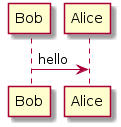
Ein schönes Tool namens PlantUML http://www.plantuml.com kann schöne UML Diagramme generieren.

Diese können als Grafik oder sogar als ASCII Art heruntergeladen werden.

Beispielausgabe:

plantuml

oder

     ┌───┐          ┌─────┐
     │Bob│          │Alice│
     └─┬─┘          └──┬──┘
       │    hello      │   
       │──────────────>│   
     ┌─┴─┐          ┌──┴──┐
     │Bob│          │Alice│
     └───┘          └─────┘


Linux: Paketanalys DNSSEC mit wireshark (tshark)

Für Server ohne GUI gibt es das Kommandozeilen Tool tshark.

Aufzeichnen von Paketen geht wie folgt:

tshark -i eth0 -a duration:200 -w /tmp/capture.pcap


diese können dann am besten in Wireshark geladen und dort analysiert werden

DANE: TLSA-Record validieren

zum Validieren von TLSA Records gibt es mehrere Tools.

Aus Holland: ldns-dane
Dies ist aus dem Paket ldns-utils zu haben. Voraussetzung eine Version >=1.6.16. Bei Debian aktuell nur über Backports erhältlich, oder natürlich selbst kompilieren.

apt-get install ldns-utils

Verwendung:

ldns-dane verify example.com 443

Korrekte Ausgabe:

192.168.0.12 dane-validated successfully

Tool 2: posttls-finger aus dem Postfix Paket

posttls-finger -c -L verbose,summary example.org

Bei Problemen kann noch der Timeout mit -t und -T erhöht werden.

Aus der Manpage:

-t timeout (default: 30)
              The TCP connection timeout to use.  This is also the timeout for reading the remote server's 220 banner.

-T timeout (default: 30)
              The SMTP/LMTP command timeout for EHLO/LHLO, STARTTLS and QUIT.

Ausgabe:

:~ > posttls-finger -c -L verbose,summary example.org
posttls-finger: initializing the client-side TLS engine
posttls-finger: using DANE RR: _25._tcp.mta4.example.org IN TLSA 2 0 2 20:2F:CF:F5:3E:65:DE:B4:C2:AB:C3:EC:6D:8F:DC:FA:5C:B7:84:A9:77:38:0E:81:D5:EF:9A:B6:F0:86:E4:93:CB:85:C6:81:22:6C:14:ED:40:A7:96:7F:EA:BC:B7:82:6F:CE:59:71:F2:9A:B1:88:FF:C6:2C:FD:F9:BF:C9:86
posttls-finger: Failed to establish session to example.org via mta4.example.org: connect to mta4.example.org[192.168.0.138]:25: Connection refused
posttls-finger: using DANE RR: _25._tcp.mta3.example.org IN TLSA 2 0 2 20:2F:CF:F5:3E:65:DE:B4:C2:AB:C3:EC:6D:8F:DC:FA:5C:B7:84:A9:77:38:0E:81:D5:EF:9A:B6:F0:86:E4:93:CB:85:C6:81:22:6C:14:ED:40:A7:96:7F:EA:BC:B7:82:6F:CE:59:71:F2:9A:B1:88:FF:C6:2C:FD:F9:BF:C9:86
posttls-finger: setting up TLS connection to mta3.example.org[192.168.0.137]:25
posttls-finger: mta3.example.org[192.168.0.137]:25: TLS cipher list "aNULL:-aNULL:ALL:!EXPORT:!LOW:+RC4:@STRENGTH:!aNULL"
posttls-finger: mta3.example.org[192.168.0.137]:25: depth=1 matched trust anchor certificate sha512 digest 20:2F:CF:F5:3E:65:DE:B4:C2:AB:C3:EC:6D:8F:DC:FA:5C:B7:84:A9:77:38:0E:81:D5:EF:9A:B6:F0:86:E4:93:CB:85:C6:81:22:6C:14:ED:40:A7:96:7F:EA:BC:B7:82:6F:CE:59:71:F2:9A:B1:88:FF:C6:2C:FD:F9:BF:C9:86
posttls-finger: mta3.example.org[192.168.0.137]:25: depth=0 trust-anchor certificate
posttls-finger: mta3.example.org[192.168.0.137]:25: depth=1 verify=1 subject=/C=DE/ST=noWhere/L=noWhere/O=Internet Widgits Pty Ltd/OU=example.org/CN=example.org/emailAddress=ssl@example.org
posttls-finger: mta3.example.org[192.168.0.137]:25: depth=0 verify=1 subject=/C=DE/ST=noWhere/L=noWhere/O=mta3.example.org/OU=mta3.example.org/CN=mta3.example.org/emailAddress=ssl@example.org
posttls-finger: mta3.example.org[192.168.0.137]:25 Matched CommonName mta3.example.org
posttls-finger: mta3.example.org[192.168.0.137]:25: subject_CN=mta3.example.org, issuer_CN=example.org, fingerprint=30:49:FB:D2:F3:D4:B3:D1:B5:32:C2:4B:1C:E7:D1:6A:AC:63:C7:D7, pkey_fingerprint=DF:48:73:8C:0B:E2:4B:30:50:EE:4D:AF:9F:A4:2F:1C:98:A4:BF:8F
posttls-finger: Verified TLS connection established to mta3.example.org[192.168.0.137]:25: TLSv1.2 with cipher ECDHE-RSA-AES256-GCM-SHA384 (256/256 bits)

Mail: SMTP AUTH via Konsole testen, inkl. STARTTLS

Ohne TLS:
Aufbau der Verbindung:

telnet mx.example.com 25

oder

netcat mx.example.com 25

man wird nett begrüßt mit

220 mx.example.com ESMTP

Dann senden wir ein „EHLO unserhosname“ o.ä.

EHLO test.example.com

Wir bekommen eine Antwort mit den unterstützten Befehlen:


250-mx.example.com
250-PIPELINING
250-SIZE 102400000
250-VRFY
250-ETRN
250-STARTTLS
250-AUTH PLAIN LOGIN
250-AUTH=PLAIN LOGIN
250-ENHANCEDSTATUSCODES
250-8BITMIME
250 DSN

Hier sieht man das der Server nur PLAIN und LOGIN unterstützt, nur Klartext verfahren. ALSO: Ohne TLS nur Test-Logins verwenden!

Hier gibt es nun zwei Möglichkeiten: PLAIN oder LOGIN

Bsp. PLAIN:

AUTH LOGIN

es kommt eine Antwort in Base64 Kodierung: 334 VXNlcm5hbWU6
Er möchte gerne den Benutzernamen wissen, den müssen wir ebenfalls Base64 kodiert übertragen.
Vorgehensweise:

perl -MMIME::Base64 -e 'print encode_base64("username");'

echo -n "username" | openssl enc -base64

python -c "import base64;print base64.encodestring('username')"

usw.

Hier als Beispiel der Nutzer test

dGVzdA==

als nächstes wird das Passwort verlangt: 334 UGFzc3dvcmQ6
für unseren Testaccount ebenfalls test:

dGVzdA==

dann folgt eine Bestätigung vom Mailserver:

235 Authentication succeeded

Bsp. LOGIN:

das gleiche wie bei PLAIN jedoch wird der Benutzername und das Kennwort in einem Schritt übertragen:

perl -MMIME::Base64 -e 'print encode_base64("\000username\000passwort");'

echo -en "\000username\000passwort" | openssl enc -base64

python -c "import base64;print base64.encodestring('\000username\000passwort')"

usw.

auch hier folgt dann eine Bestätigung vom Mailserver:

235 Authentication succeeded

Mit TLS

Das Gespräch mit dem Mailserver hat den gleichen Inhalt, jedoch wird die Verbindung anders hergestellt:

openssl s_client -host mx.example.com -port 25 -starttls smtp

andere ports ansonsten über

openssl s_client -host mx.example.com -port 465

openssl s_client -host mx.example.com -port 993

als Ausgabe sind nun noch ein paar TLS Infos zu sehen.

der rest wie oben 😉

Linux: KVM mit virsh verwalten

KVM ist ne feine Sache, hier die häufigsten Kommandos:

weiteres: virsh bei ubuntuusers: http://wiki.ubuntuusers.de/virsh

VMs auflisten:

virsh list --all

vm definieren

virsh define /pfad/zur/datei.xml.org (am besten /etc/libvirt/qemu/srvname.xml.org)

vm automatisch starten

virsh autostart vmname

vm killen

virsh destroy vmname

vm undefinieren

virsh undefine vmname

vm starten und Konsolen Ausgabe anzeigen

virsh start --console vmname

später auf die Konsole zugreifen

virsh console vmname

aus der Konsole ausbrechen

Strg + 5

last verbrauch:

virt-top

start stop etc.

virsh start vmnane
virsh reboot vmname
virsh shutdown vmname

wenn shutdown nicht will dann hart mit
virsh destroy vmname

LVs anlegen

lvcreate -n /dev/vg0/ROOT-LV -L 6GB vg0
lvcreate -n /dev/vg0/SWAP-LV -L 2GB vg0
mkfs.ext4 -L ROOT-LV /dev/vg0/ROOT-LV
mkswap -L SWAP-LV-swap /dev/vg0/SWAP-LV

Konfiguration editieren

virsh edit vmname